


|
|

 In English
 Suomeksi
Software
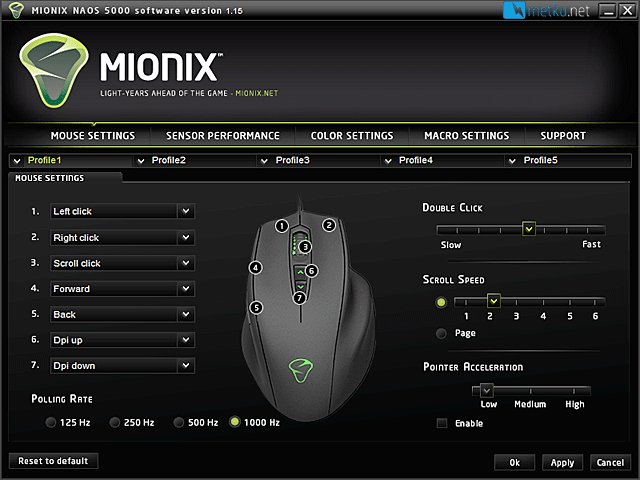
After downloading and installing the driver package from Mionix website, this is the first view you get at the settings. The overall theme of the software is dark, but clean. In this main view one can change the acceleration, polling rate, scroll speed, double click speed and re-map all the seven buttons.
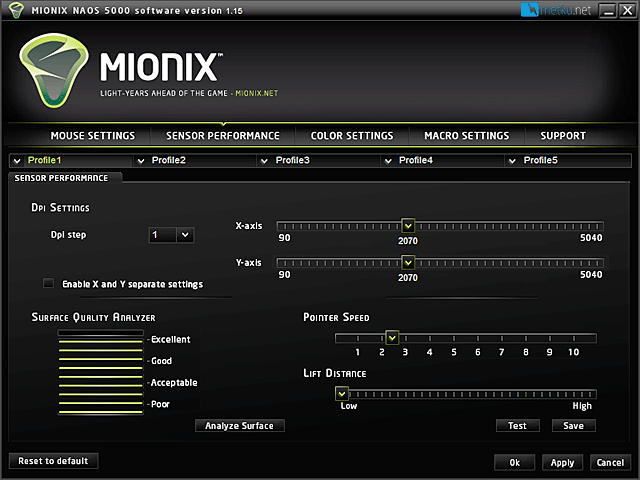
From the sensor performance-view you find the usual sensitivity settings for all the three steps, as well as the pointer speed and also lift distance. I tried the lift distance at both the low and high settings, and while there's a difference, it's a very small one. Still some might find this feature handy. On the left corner there's also the Surface Quality Analyzer, which rates the mouse surface. In theory this gives you a reading of how well the mouse pad works with the Naos 5000, but I found the results not only to depend on the surface used, but to also vary depending on how you move the mouse on any given pad.
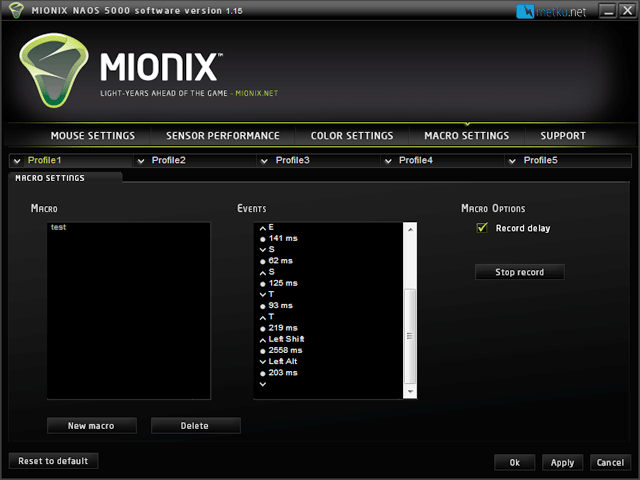
The macro editor is again the usual deal that lets you record key presses with or without delays and then bind those to the mouse buttons.
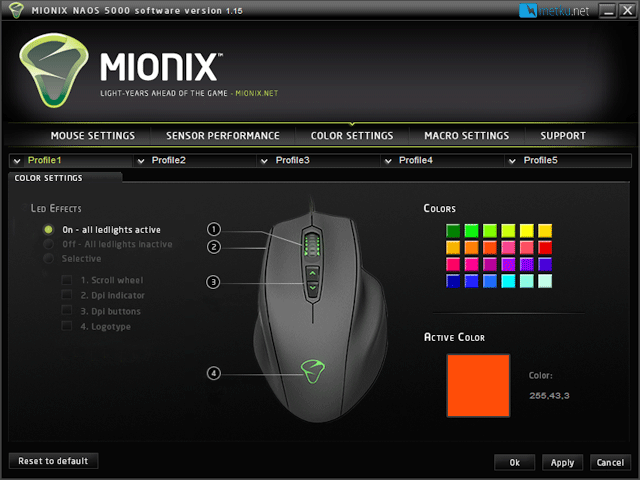
Finally there's also settings for the lights on the mouse. The stock setting for the Naos 5000 is green lights on the DPI keys, indicators, mouse wheel and the logo, but you can both select which leds are active and also the color in which they all shine. I generally don't really like excess lighting on peripheral, but these ones may actually become quite handy as you can choose different color for all the five profiles and thus make it very easy to notice which profile is in use. Also if you're like me and don't like the lights, you can just choose which, or any, lights you want to be lit.
 | Pages: 1 2 3 4 |  |
 Content in english!
 Sisältö suomeksi!